
Clients
Your client list. No need to add clients by hand: each one is created the first time they book, from the link or from the front desk.
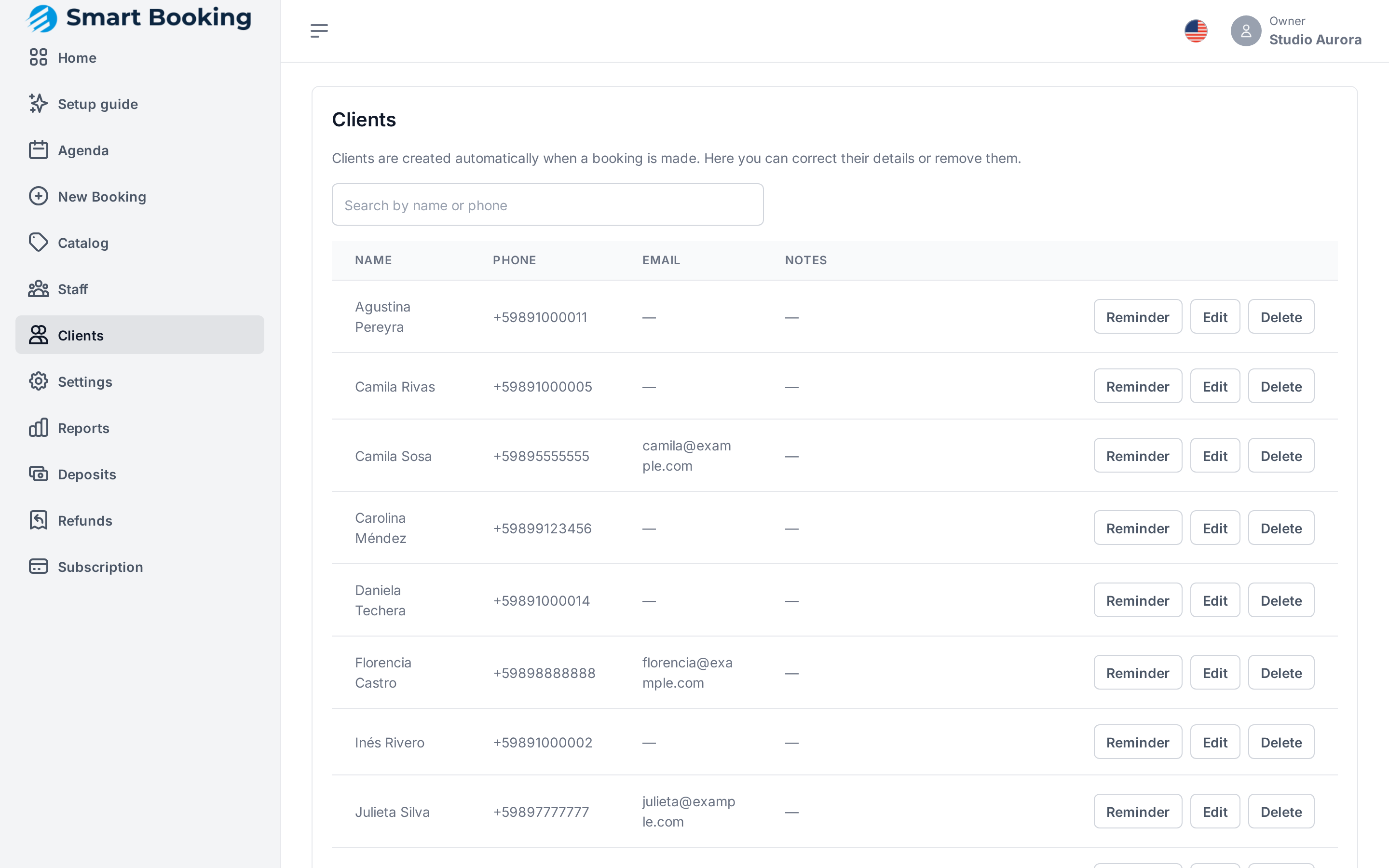
Searching
Type part of a name or phone number in Search by name or phone.
Editing
Tap Edit to fix:
- Name, Phone and Email.
- Notes: allergies, preferences, anything the team should know.
The phone number is stored in international format. That's how a returning client is recognized: if they book again with the same number, the system knows it's the same person. So two clients can't share a phone number or email. If that happens you'll see Another client already uses that phone number or email.
Reminders
To send a client a message at a time you choose — "your colour touch-up is due", "your order arrived" — tap Reminder on their row:
- In Date and time, pick when to send it. It's the business's time, even if you are somewhere else.
- Write the Message (up to 1000 characters).
- Tap Schedule reminder.
It goes out by WhatsApp, with the business name on top. If WhatsApp fails and the client has an email, it goes by email instead. They don't need a booking.
The same window lists that client's reminders and their status: Scheduled, Sent, Cancelled, Failed or Not sent (for example, when the client has no way to receive it). Until it's sent, you can tap Cancel.
Deleting
Only the owner can delete clients. Tap Delete and confirm. Their past appointments are kept in the agenda and reports, just no longer linked to a client. This can't be undone.