
Handling an appointment
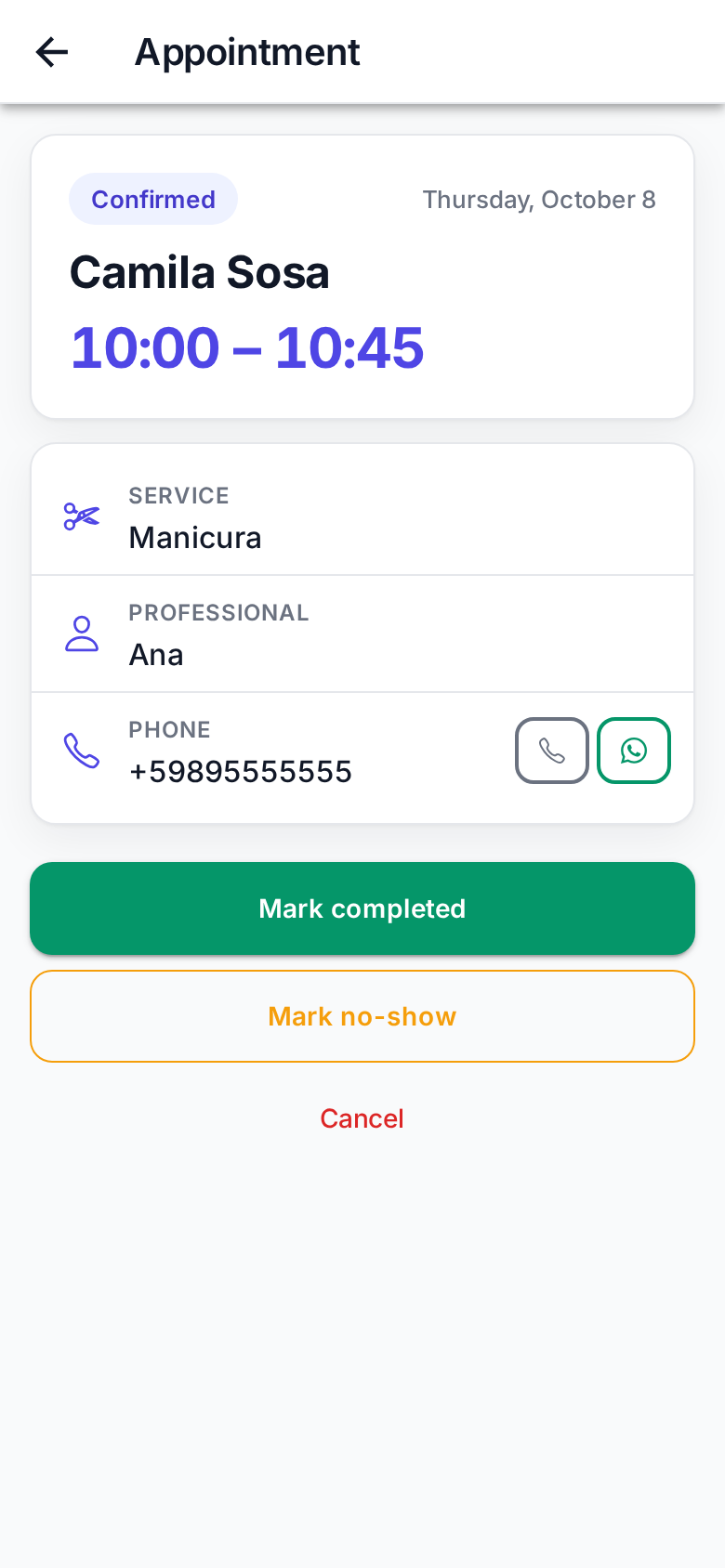
Tap an appointment in the agenda to see the details.
Contacting the client
Next to the phone number there are two buttons:
- Call.
- WhatsApp, which opens a chat with the client.
Recording how it ended
The buttons depend on the appointment's status:
| Status | Buttons |
|---|---|
| On hold (deposit missing) | Confirm · Cancel |
| Confirmed | Mark completed · Mark no-show · Cancel |
| Completed, Cancelled, Expired, No-show | None: this appointment is in a final state |
- Mark completed: when you've finished.
- Mark no-show: the client didn't come and didn't warn. It asks you to confirm because it can't be undone.
- Cancel: frees the slot for another booking. It also asks you to confirm and can't be undone.
Mark all your appointments
This is what the no-show rate and your monthly figures are built from. An unmarked appointment doesn't count.
"Couldn't do that: the appointment already changed status"
Someone changed it elsewhere (the front desk, or the client cancelled). Go back and pull down to see the current status.