
WhatsApp and reminders
Messages the client receives
| When | Message | Channel |
|---|---|---|
| When the appointment is confirmed | Receipt with the details and a cancel link | WhatsApp. Email if that fails and they left one |
| 24 hours before | Appointment reminder | WhatsApp, with email if that fails |
| If you reschedule | Notice with the new time, plus a fresh 24 h reminder | WhatsApp. Email if that fails and they left one |
Messages go out automatically. You don't have to do anything.
Messages staff receive
| When | Message |
|---|---|
| Every evening at 20:00 | The next day's schedule: time, service and client of each appointment |
| 10 minutes before each appointment | Time, service and client |
They go as a staff-app notification to whoever turned those on, otherwise by WhatsApp to the phone in Staff, from the business's WhatsApp if you linked it. If an appointment is cancelled or moved, its message is cancelled or moved with it, and if it moves to another professional, the new one gets it.
Linking the business's WhatsApp
When you link the business's WhatsApp, messages reach your clients from your own number, and if they reply, the reply comes to you.
Included from the Pro plan
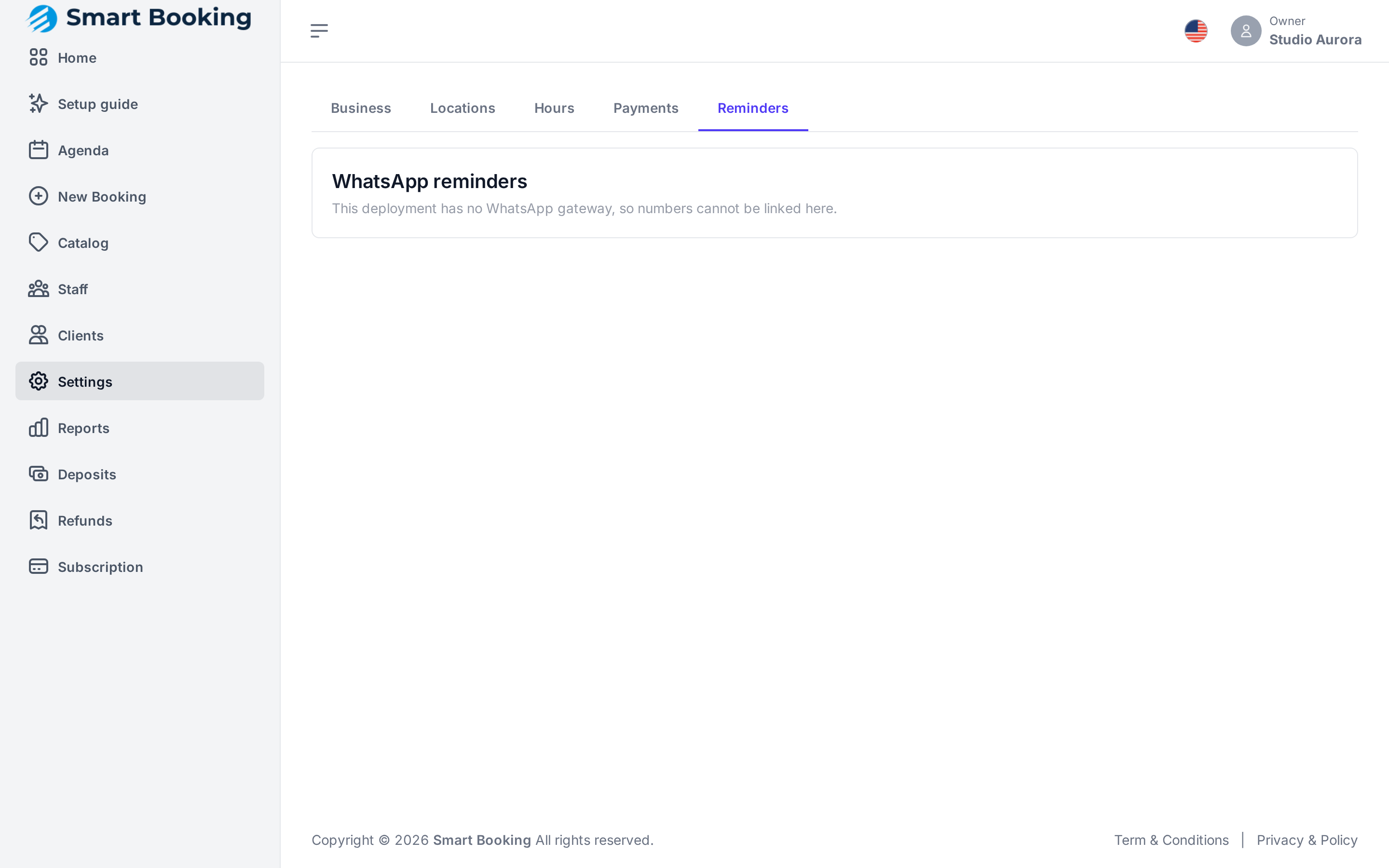
On the Free plan, messages go out from Smart Booking's number and you see See plans instead of the button. If you move down a plan with a number linked, it stays linked but unused, and is used again as soon as you are back on Pro, with nothing to scan. See Subscription.
Settings › Reminders › Link WhatsApp.
- Open WhatsApp on the business phone.
- Go to Settings › Linked devices › Link a device.
- Point the phone at the QR code on screen.
- Keep the page open until it shows the linked number. The code refreshes on its own if it takes a while.
It then shows Linked: Reminders and confirmations are sent from this number.
Without scanning: link with a code
If the dashboard is open on the same phone you want to link, you can't scan your own screen. Use a code:
- Tap Link with a code (or, if the QR is already showing, On the same phone? Use a code instead).
- Type the salon's WhatsApp number and tap Get code.
- On that phone, open WhatsApp. A notification to link a device may appear; if not: Settings › Linked devices › Link a device › Link with phone number instead.
- Type the 8-character code the dashboard shows.
The code only works on the phone with that number and expires in a few minutes. If it doesn't work, tap Get a new code.
The QR is a key
Whoever scans that code — or types the link code — can send messages as your business. Only the owner can see it. Never send anyone a photo of the QR.
States
- Linked: all good.
- Linked · offline: the phone is off or has no internet. Meanwhile, messages go by email. Switch it on and connect it.
- No number linked: messages go from the platform's number, if one is set up, or by email.
Changing phones or unlinking
- Link a different phone: repeat the process with another number.
- Unlink: messages go back to the platform's number or email.
You can also end the link from WhatsApp itself, under Linked devices. The system notices within a couple of minutes, and messages go back to the platform's number or email.
So reminders get through
- Each client needs a correct phone number. Check it in Clients.
- The business phone needs to be on and online now and then.
- WhatsApp Business or regular WhatsApp both work.