
Your booking link
Your clients book on their own from a public page with your logo: they pick a service, a professional (or Anyone), a day and a time, and leave their name and phone.
Where to find it
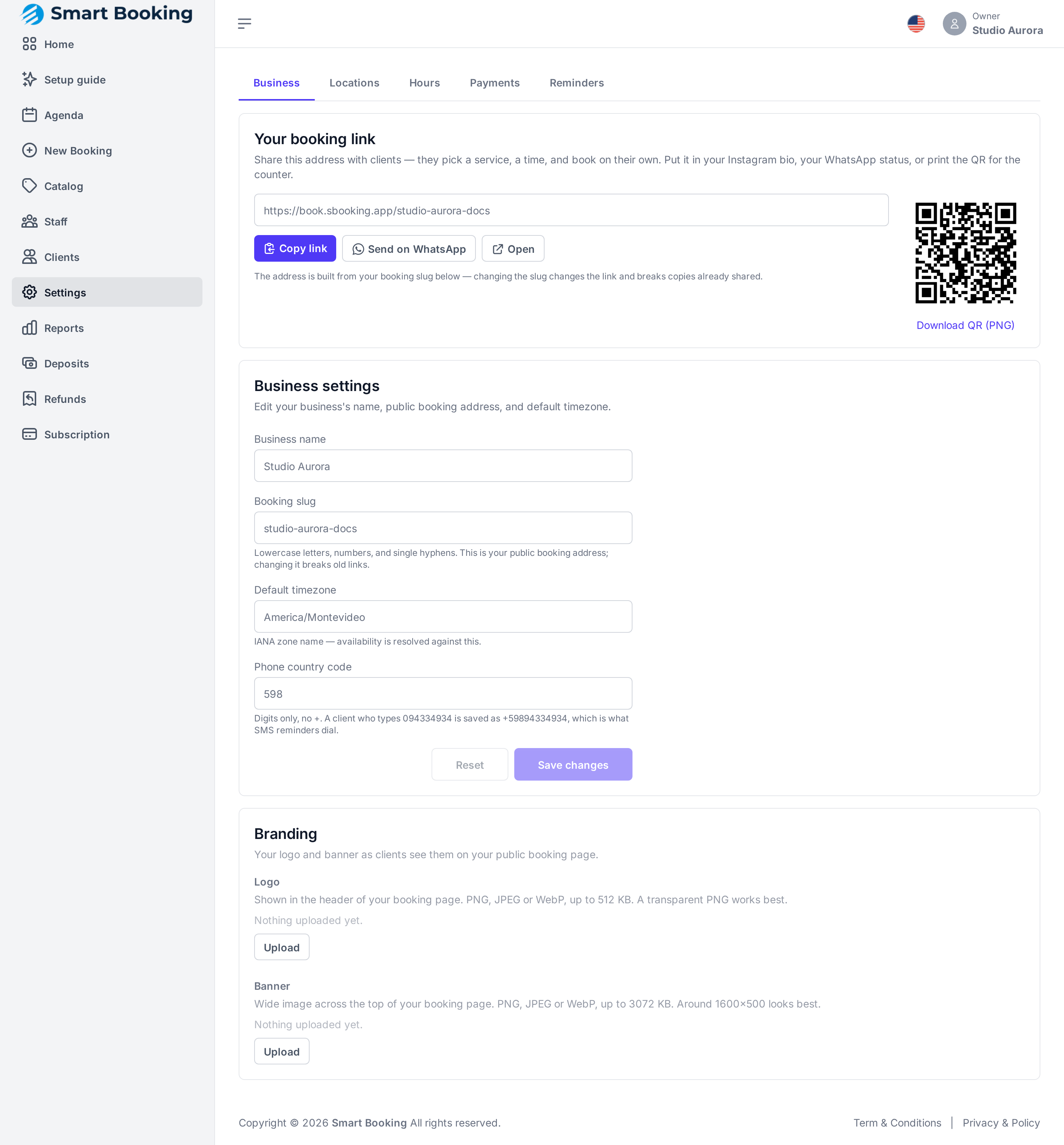
Settings › Business › Your booking link. From there you can:
- Copy link, to paste it anywhere.
- Send on WhatsApp, which opens WhatsApp with a ready-made message.
- Open, to see the page as a client sees it.
- QR & more › Download QR (PNG), to print it for the front desk.
Where to put it
Your Instagram bio, your WhatsApp Business status and profile, Google Maps, and a printed QR at the front desk and on the mirror.
Changing the slug breaks the link
The end of the link is your Booking slug (Settings › Business). If you change it, the old link stops working everywhere you've shared it.
What the client sees
- Service: the active services, with duration, price and whether a deposit is required.
- Professional and date: the client taps the photo of who they want, or Anyone (first available), and picks the day. If only one person does the service, they're already selected. Photos are set in Staff.
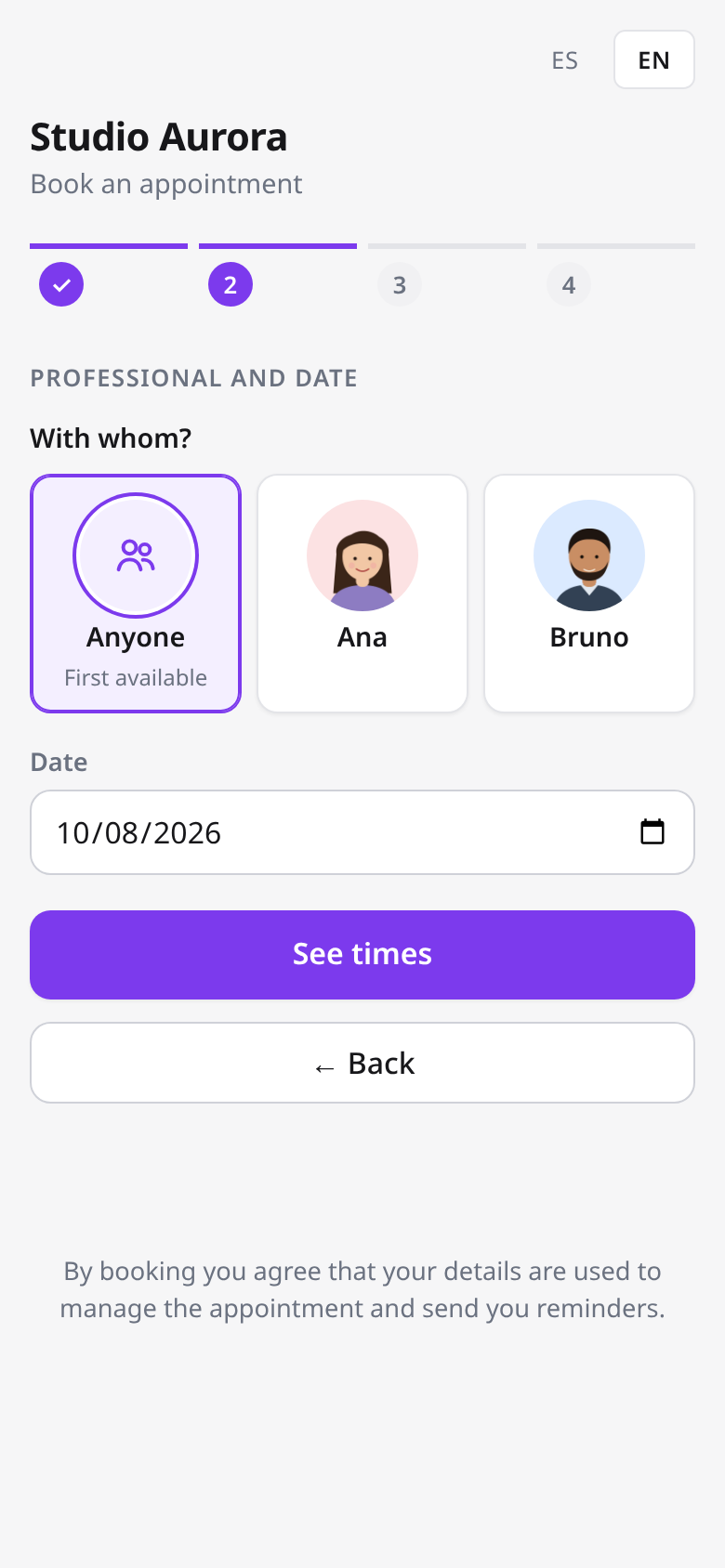
- Time: only genuinely free times are shown. Taken appointments, closures and time off and each person's hours are already subtracted.
- Details: name, phone and email (optional). The top shows who the appointment is with, with their photo — with Anyone, it's the first time the client learns it. If the client has booked from that phone before, their details are filled in automatically.
If the service needs no deposit, the appointment is confirmed immediately. If it needs one, it stays on hold until paid (see Deposits and payments).
Messages the client receives
- When confirmed: a receipt with the appointment details and a link to cancel the booking if they can't make it. It goes by WhatsApp; if that fails and they left an email, by email.
- 24 hours before: a reminder.
- If you move the appointment: a notice with the new time.
More in WhatsApp and reminders.