
New booking
For booking a client who calls or messages, seeing the free times first.
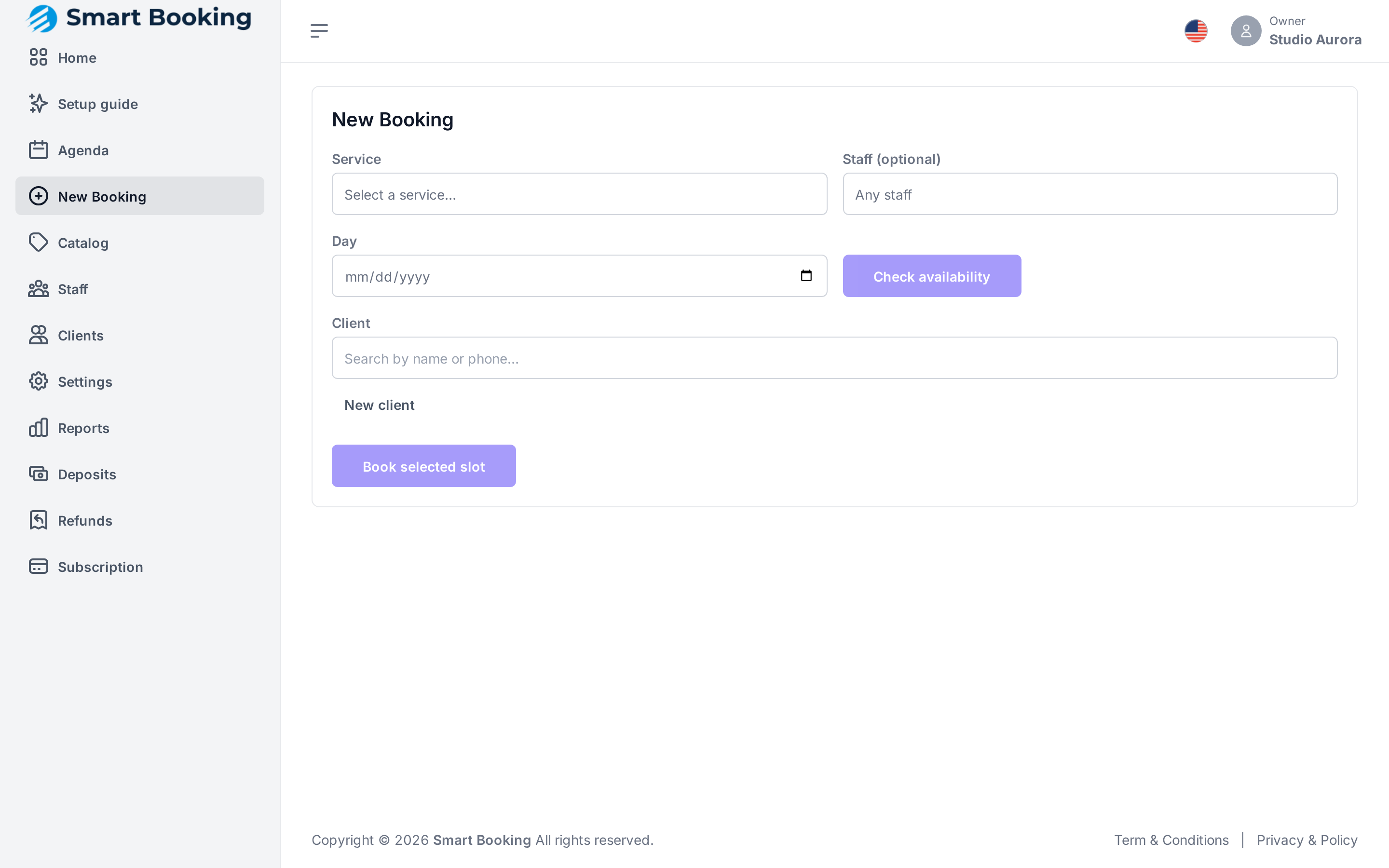
Step by step
- Service: what will be done.
- Staff (optional): a specific person, or Any staff.
- Day: then tap Check availability.
- Open slots: pick one. Only genuinely free times are shown.
- Client:
- Type a name or phone number to find someone who has booked before.
- If they're new, tap New client and enter name and phone.
- Tap Book selected slot.
Phone is required, email isn't
Every reminder goes to the phone, so you can't book without a phone number. Type it the way you'd say it (094 334 934) and it's stored in international format (+59894334934). If an existing client has no phone, add it first in Clients.
Email is optional. If a client has one stored, booking them by phone alone does not erase it.
Services with a deposit
If the service requires a deposit, the booking is held and you see Deposit required — slot held. Choose how it's paid:
- Card / online checkout: tap Collect deposit → to open the payment now, or send the client the link. They have about 10 minutes to pay.
- Bank transfer: your bank details and a Reference code are shown. Give both to the client. When you see the money in your account, approve it in Deposits. They have up to 48 hours.
If you already took the deposit in cash, open the appointment in the Agenda and tap Confirm.
Tapping twice doesn't double-book
If the connection drops and you tap Book again, no second appointment is created. The system recognizes the same booking and shows Already booked.