
Several locations
If your business has more than one location —a chain of barbershops, say— they are all run from the same account: one sign-in, one client list, one catalog and one subscription. Each location has its own booking link, team, chairs and closures.
If you have a single location
There is nothing to do. Your business already has its Main location, and while it is the only one you will not see any of this anywhere else in the admin.
Add a location
Settings › Locations.
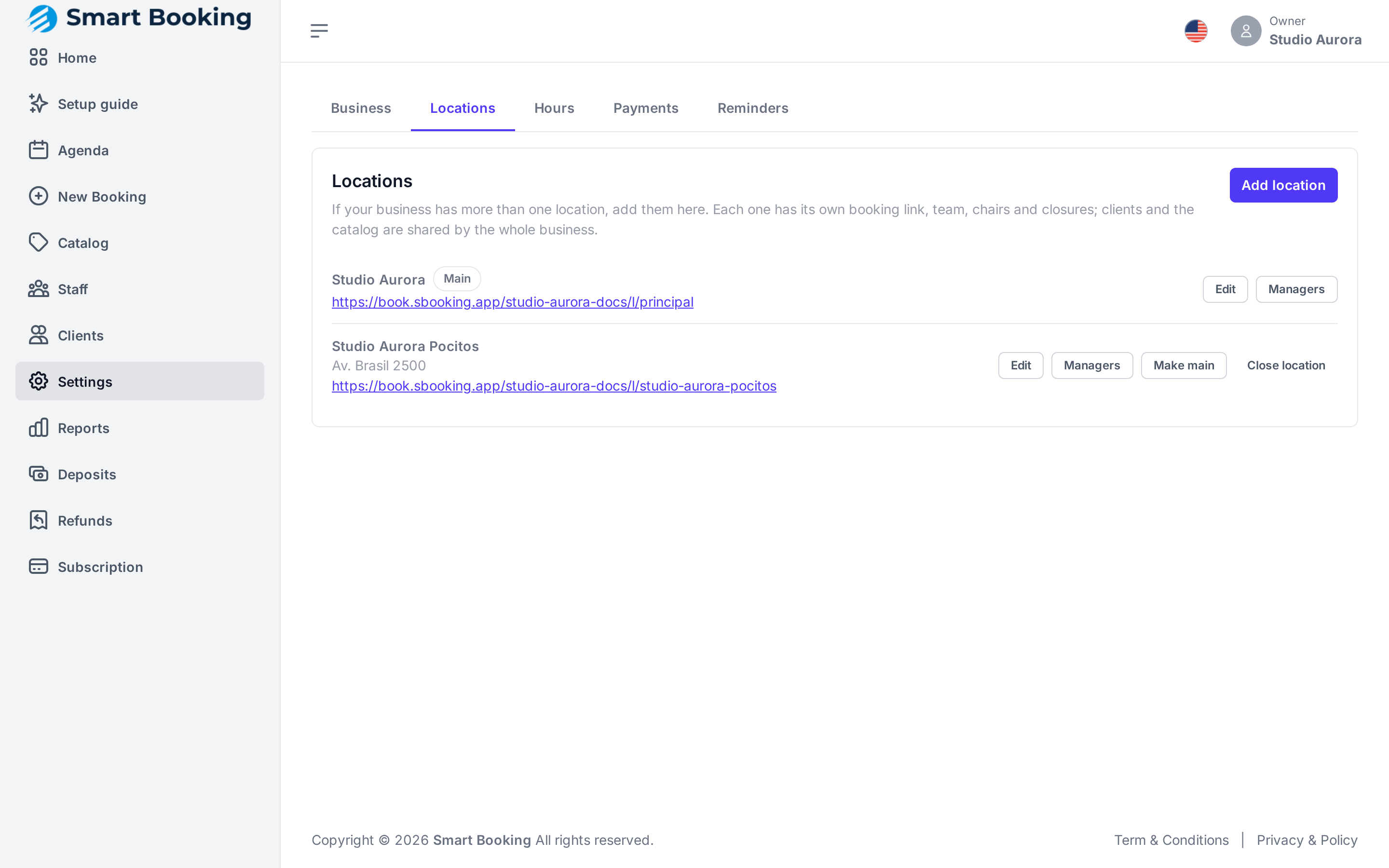
- Tap Add location.
- Name: what your clients call it, e.g. Downtown.
- Link (optional): leave it empty to build it from the name.
- Address and Phone: the client sees the address when booking and in their confirmation.
- Time zone (optional): only if that location is in a different time zone.
- Tap Save.
Depends on your plan
The free and Pro plans include one location. To open more, move to a plan that includes them in Subscription.
Who works where
Staff › Edit hours.
- Main location: where that person usually works.
- Under each time range there is a Location picker: if on some day (or part of a day) they work at another location, pick it there. For example, Monday 10–13 at Downtown and 14–18 at Uptown.
Nobody can be at two locations at once: the ranges of one day cannot overlap, even when they are at different locations.
When you add someone new in Staff, pick their Location.
A different price at each location
In Catalog, editing a service shows Price per location: enter that location's price, or leave it empty to charge the general price. The client sees the price of the location they picked, and the deposit is worked out on that price.
If a person has their own price for that service (in Staff), that price wins over the location's.
Chairs and closures
- In Catalog, each resource (chair, bed, room) has its Location: it is only booked there.
- In Hours and closures, when you add a closure for the Whole business, pick the Location: one location (a refurbishment) or All locations (a public holiday). A person's leave applies at every location.
The agenda and bookings
- In the Agenda, top right, pick which location to see, or All locations. The choice is remembered on that device.
- In New booking, pick the Location and you will only see the people who work there.
- In Reports you can look at one location or the whole business.
The booking link
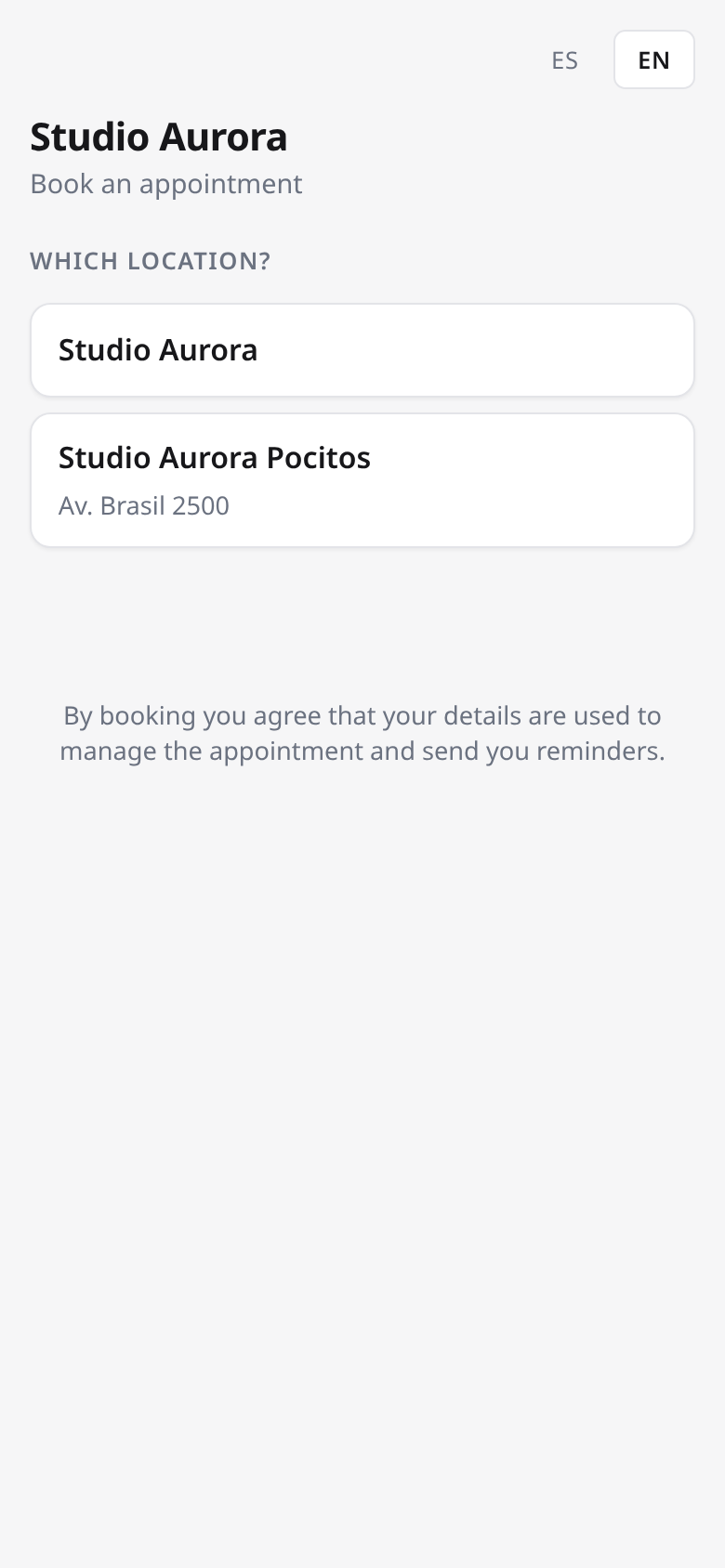
Your usual link first asks Which location?. Each location also has its own link, shown under its name in Settings › Locations: share that one on each location's Instagram or counter, and the client books straight into it.
Location managers
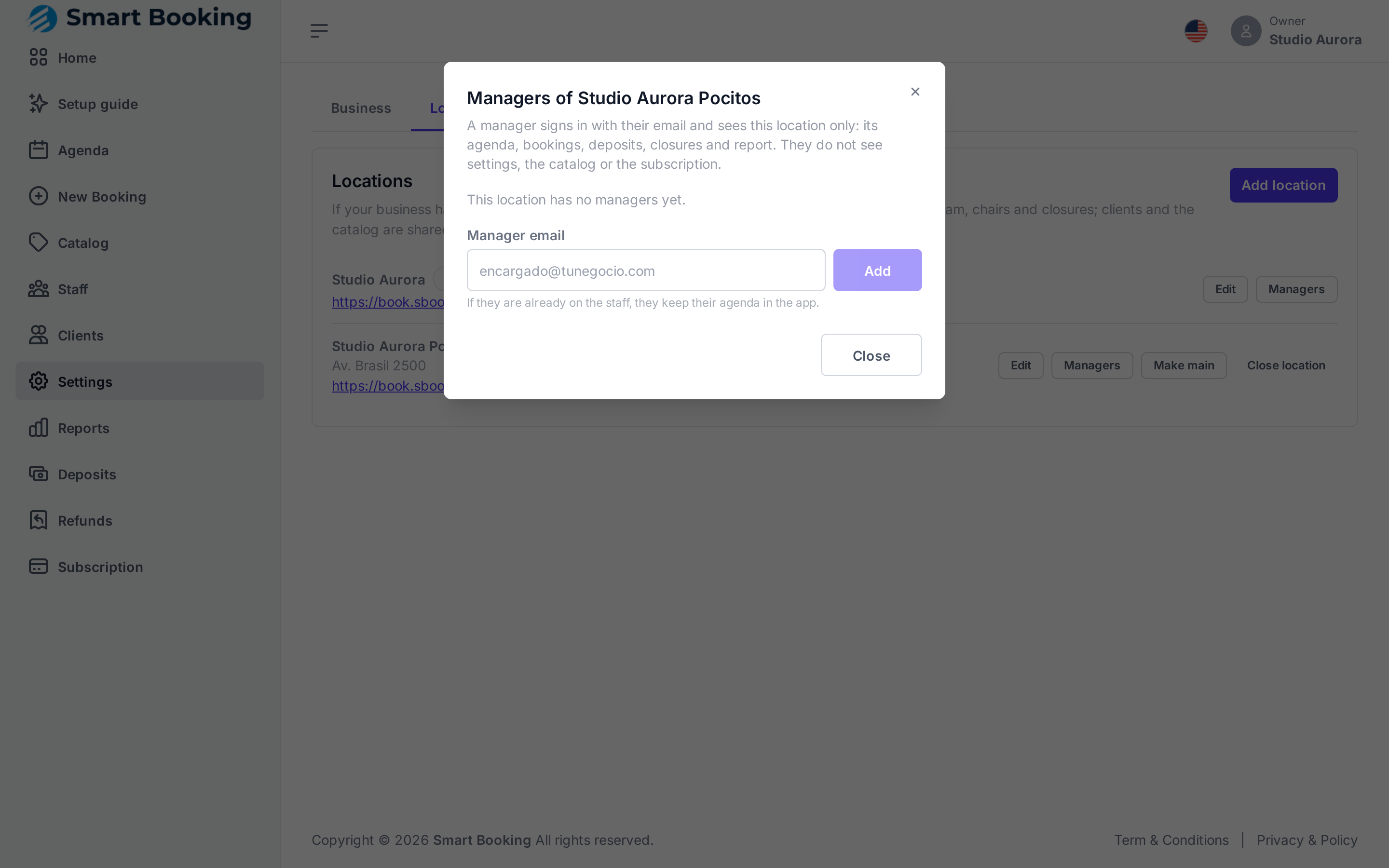
In Settings › Locations, tap Managers on the location and type the person's email. They sign in with that email, like everyone, and see that location only: its agenda, bookings, transfer deposits, closures and report. They do not see the settings, the catalog, the staff or the subscription.
- If that person is already on the staff, they keep their agenda in the app.
- Tapping Remove ends their access right away. If they also work there, they stay on as staff.
Make main or close a location
- Make main: the main location is where bookings made from an old app version that does not know about locations yet land.
- Close location: it stops being offered for booking. The main one cannot be closed (make another one main first), nor one with appointments ahead (move or cancel them first). Reopen brings it back.