
Staff
Who works, when, and which services each person does. This screen is owner-only.
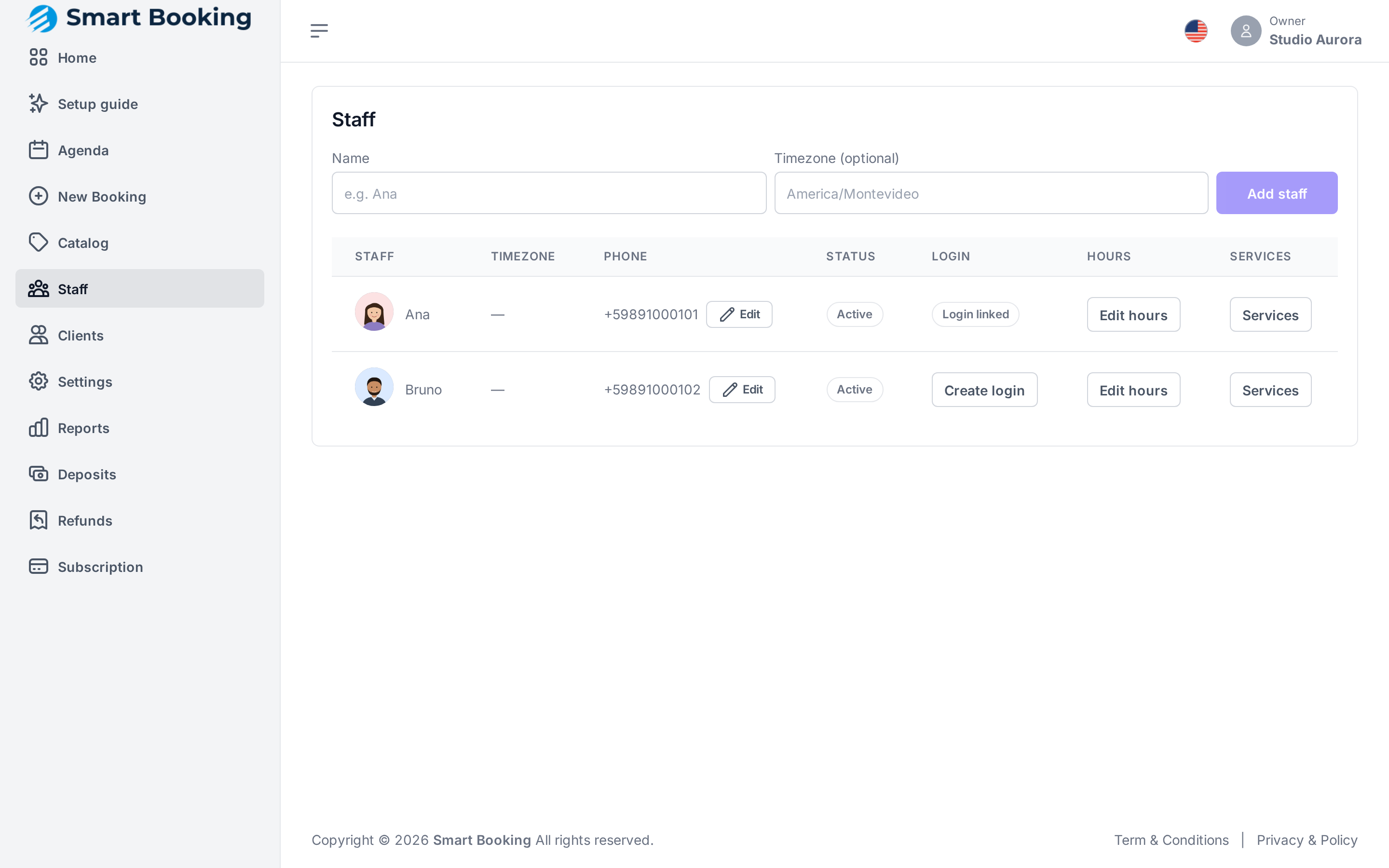
Adding someone
Enter the Name. Timezone is optional: leave it empty if they work where the business is. Tap Add staff.
A new person starts with the business's default business hours.
Photo
Each professional's photo appears on your booking page when the client chooses who to book with. With no photo, their initials are shown.
Tap the circle with their initials (or their photo) next to the name, then Upload photo (or Change photo). Pick a JPG, PNG or WebP image: we crop it square and shrink it for you, so a photo straight from a phone is fine. To take it down, Remove photo.
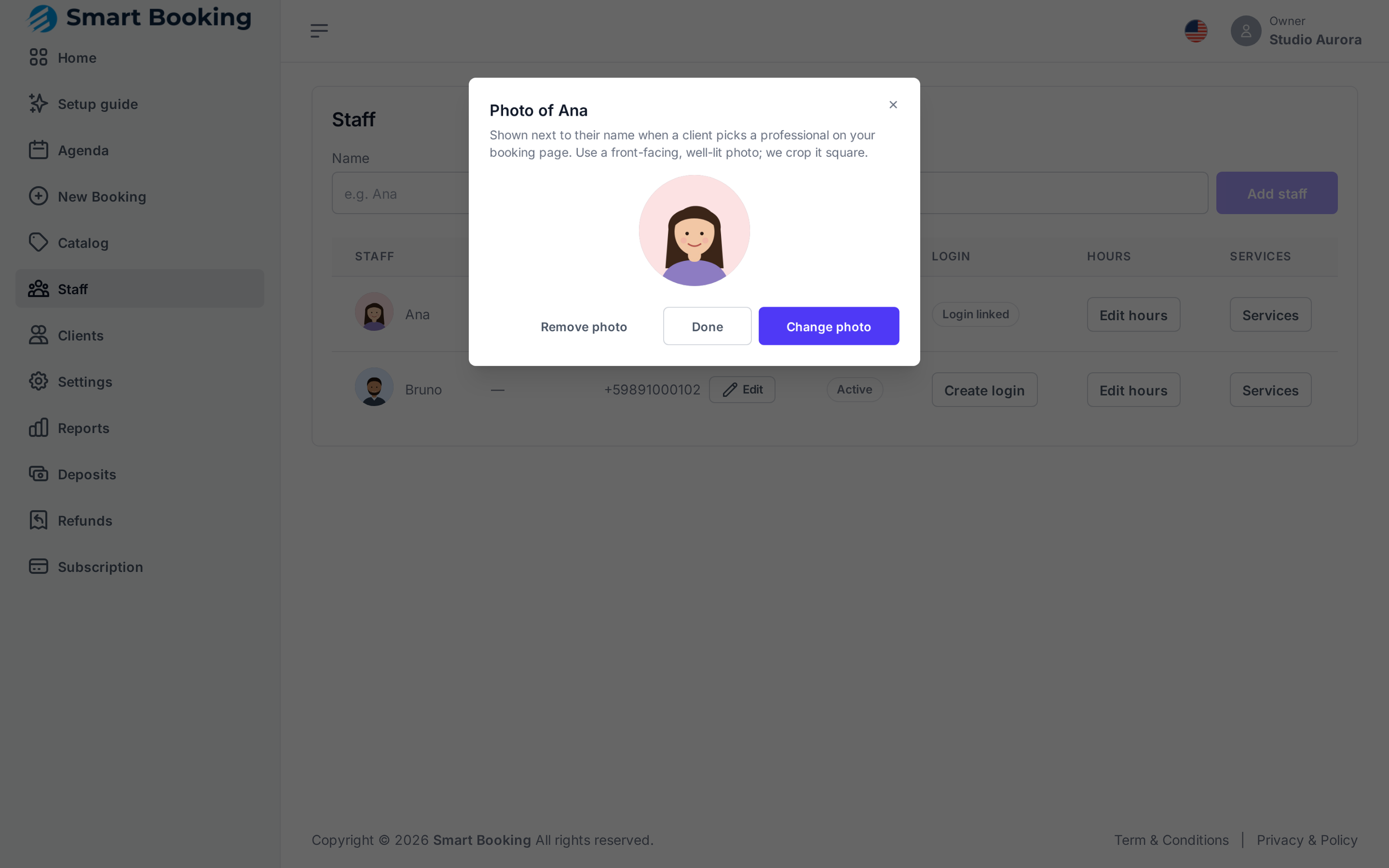
Each professional can also set their own photo from the staff app.
Each person's hours
Tap Edit hours. For each day add one or more ranges (e.g. 9:00–13:00 and 15:00–19:00 for a lunch break). An empty day is a Day off. Tap Save hours.
For holidays or a one-off day, don't change the hours: add time off.
Services each person performs
Tap Services and tick what they do. For each one you can set a price or duration just for this person. Leave it empty to use the service's default.
Clients can only book a person for a service ticked here.
Phone and notifications
Each professional gets two messages about their work:
- Every evening at 20:00, their schedule for the next day.
- 10 minutes before each appointment, the time, service and client.
They arrive as a staff-app notification if the person turned those on (how). Otherwise they arrive by WhatsApp to the phone you enter here.
To enter it, tap Add in the Phone column (or Edit, next to the number, to change it), type it the way you'd say it (094 334 934) and tap Save. It's stored in international format. Leave it empty to remove it.
With neither notifications nor a phone, it goes by email to their login address. With no login either, nothing is sent: their row says Gets no notifications: add a phone or app access., and Home keeps reminding you until it is fixed.
If you work appointments too
Your owner login is not tied to your row in Staff. To get your own agenda, add your phone to your row, or create an access for it with a different email.
Give them access to the app
So someone can see their agenda in the Staff app:
- Tap Create login on their row.
- Enter an Email they read. There's no password: each time they sign in we email a code to that address.
- Save. The Login column changes to Login linked.
Send them staff.sbooking.app and the install instructions.
If they lose access to their email
If they can no longer read that inbox, they can't sign in. Email [email protected] to change it.
Plan limits
Each plan allows a number of staff. When you reach it, you can't add more until you change plans (Subscription).